
Introduction
Automating tests can be time-consuming, especially when writing scripts from scratch. Playwright’s Codegen feature provides an efficient solution by allowing testers to record interactions in the browser and automatically turn them into test code. This article will explore how to get started with Playwright Codegen directly from the Visual Studio Code interface, including a brief explanation of its two recording options, “Record New” and “Record at Cursor.”
What is Playwright Codegen?
Playwright Codegen is a feature that generates test scripts by recording user actions directly in the browser. Rather than coding each interaction manually, you simply perform actions on the web page, and Playwright captures them as code. This makes it faster to create and modify tests, especially for straightforward workflows.
Using Codegen from the Visual Studio Code Interface
With Playwright integrated into Visual Studio Code, you can access Codegen’s features directly from the IDE’s interface, making test creation even more accessible. Here’s how to start recording tests using the Visual Studio Code interface:
- Open the Playwright Test Sidebar
On the left sidebar of VS Code, open the Testing section, where you’ll find the Playwright options. - Select Browsers for Testing
Under Projects, you can select the browsers you want to test on: Chromium, Firefox, and WebKit. Checking or unchecking these options allows you to switch between browsers for your tests. - Enable or Disable Settings
- Show Browser: Displays the browser window as you record interactions, providing visual feedback.
- Show Trace Viewer: This can be helpful for debugging, as it enables the trace viewer to display a detailed log of each action taken during the test.
- Access Codegen Tools
Under Tools, you’ll see options for:- Pick Locator: Select and generate locators for elements.
- Record New: Starts a new recording session.
- Record at Cursor: Adds recorded steps at a specific point in an existing test file.
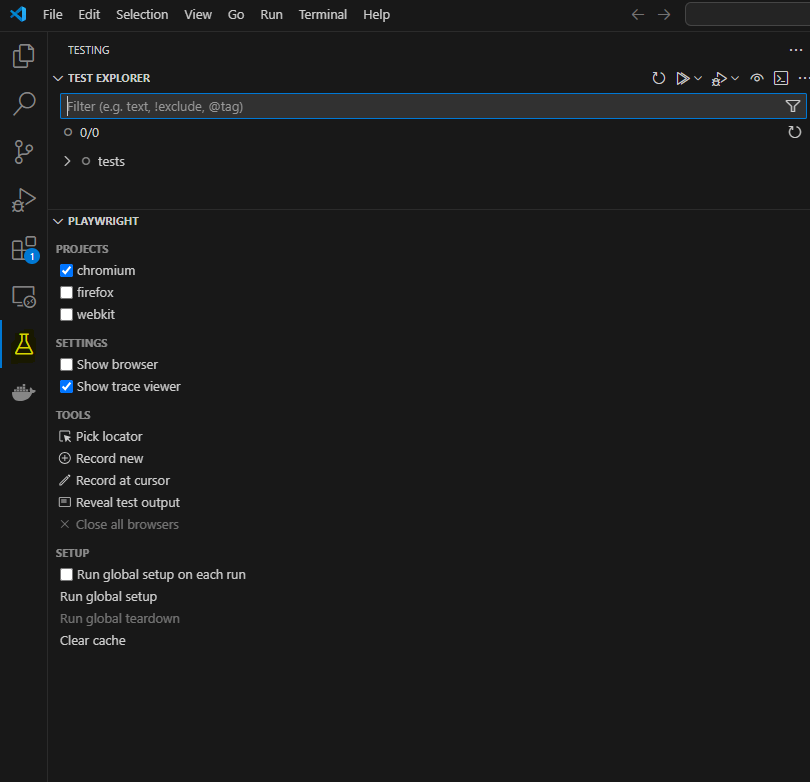
Codegen Options: “Record New” vs. “Record at Cursor”
In the Visual Studio Code interface, Playwright Codegen offers two key recording options:
Record New
Purpose:
“Record New” is used to create a brand-new test. Selecting this option opens a new browser session, where your interactions will be recorded into a new test file.
How to Use:
In the Playwright sidebar, click Record New. This opens a new browser window where you can perform actions (clicks, text input, navigation, etc.). When finished, close the browser, and your interactions will be saved in a new test file.
Best Use Case:
“Record New” is perfect for building new tests from scratch, such as capturing a login flow or completing a checkout process.
Record at Cursor
Purpose:
“Record at Cursor” allows you to add recorded steps to an existing test file at the specified cursor location. This feature is useful when modifying an existing test by adding additional actions without re-recording the entire sequence.
How to Use:
- Open an existing test file in VS Code and place your cursor at the desired insertion point.
- Go to the Playwright sidebar and click Record at Cursor.
- Perform the actions you want to add. The new steps will be inserted at the cursor’s position in the test file.
Best Use Case:
“Record at Cursor” is ideal for extending a test with extra validations or steps, such as navigating to a new page or verifying additional elements after an initial action.
Additional Playwright Codegen Options
Playwright in Visual Studio Code also includes other useful options under Setup:
- Run Global Setup on Each Run: Ensures global setup runs before each test session.
- Run Global Teardown: Cleans up after the test session.
- Clear Cache: Clears cached data to avoid any state carryover between tests.
These options can help manage the testing environment, making sure each test run starts in a consistent state.
Benefits of Using Playwright Codegen in Visual Studio Code
- Speed and Efficiency
Codegen automates script creation, saving time on test setup. Using it directly from VS Code further streamlines the process, keeping everything in one workspace. - Visual Feedback
Enabling the Show Browser setting lets you see your actions in real time, helping to ensure accuracy in recorded interactions. - Seamless Test Modification
With “Record at Cursor,” you can easily add steps to existing tests, giving you flexibility without the need to start over. - Built-In Debugging
Show Trace Viewer helps troubleshoot issues by displaying detailed action logs, making it easier to identify and fix problems.
Limitations to Keep in Mind
- Basic Assertions Only
Codegen supports basic assertions, but for complex validations, you may need to edit the generated code manually. - Limited for Advanced Scenarios
Codegen is best suited for simple flows. For advanced test logic or conditional steps, manual coding may offer better control. - Potential for Flakiness
Although Playwright tries to generate stable locators, dynamic content on web pages may sometimes lead to flaky tests that require locator adjustments.
When to Use Playwright Codegen
Recommended for:
- Quickly setting up new test cases.
- Validating simple workflows and UI interactions.
- Adding new steps to existing tests with minimal effort.
Consider Manual Coding for:
- Complex tests requiring conditional logic or custom assertions.
- Large-scale, maintainable test suites that benefit from manual control over code.
- Scenarios where advanced debugging or flexibility is needed.
Conclusion
Playwright’s Codegen tool, accessible directly within Visual Studio Code, is a versatile option for generating and modifying test scripts quickly. By using “Record New,” you can easily create fresh tests, while “Record at Cursor” provides a seamless way to add steps to existing ones. This flexibility, combined with features like Show Browser and Show Trace Viewer, makes Playwright Codegen a powerful addition to any tester’s toolkit.
Whether you’re a beginner setting up basic workflows or an experienced tester expanding an existing test suite, Playwright Codegen in VS Code helps you achieve efficient, accurate, and maintainable test automation.






 Testing Agile
Leave a comment